> ## Documentation Index
> Fetch the complete documentation index at: https://docs.speedsignal.com/llms.txt
> Use this file to discover all available pages before exploring further.
# Account & settings
> Sign in, pick your theme and chart provider, set notification preferences, and manage your plan and billing for Speed Signal AI.
Your account controls how you sign in, how the dashboard looks, how you're notified, and your subscription. This page walks through each setting and where to find it.
## What you see
 ## Sign in or create an account
Speed Signal AI uses a hosted sign-in provider, so you can use an email and password or a social login.
Go to [speedsignal.com](https://speedsignal.com) and select **Sign in**.
Enter your email to create or access your account, or continue with one of the social providers offered.
Confirm your email if prompted, and the dashboard opens on the Daily Brief.
Your account is single-user and non-transferable. To update your login details or sign out, open the account menu (your avatar) in the top corner and choose **Manage account** or **Sign out**.
## Switch between dark and light themes
The theme toggle sits in the top navigation bar. Select it to move between dark and light, or press T. Your choice is saved in the browser you're using, so it sticks between visits on that device.
## Choose a chart provider
On any ticker's detail page, a **Chart Provider** control sits above the candlestick chart. It changes only how the chart renders, not the data behind it:
* **TradingView**: the default; a full-featured interactive chart.
* **ECharts**: a fast, lightweight renderer.
* **Lightweight**: a minimal, low-footprint chart.
Select any row on the Signal Board or Daily Brief to open its detail view.
Use the **Chart Provider** dropdown above the chart to switch rendering. If a provider can't load, the dashboard falls back to another automatically.
## Set your notification preferences
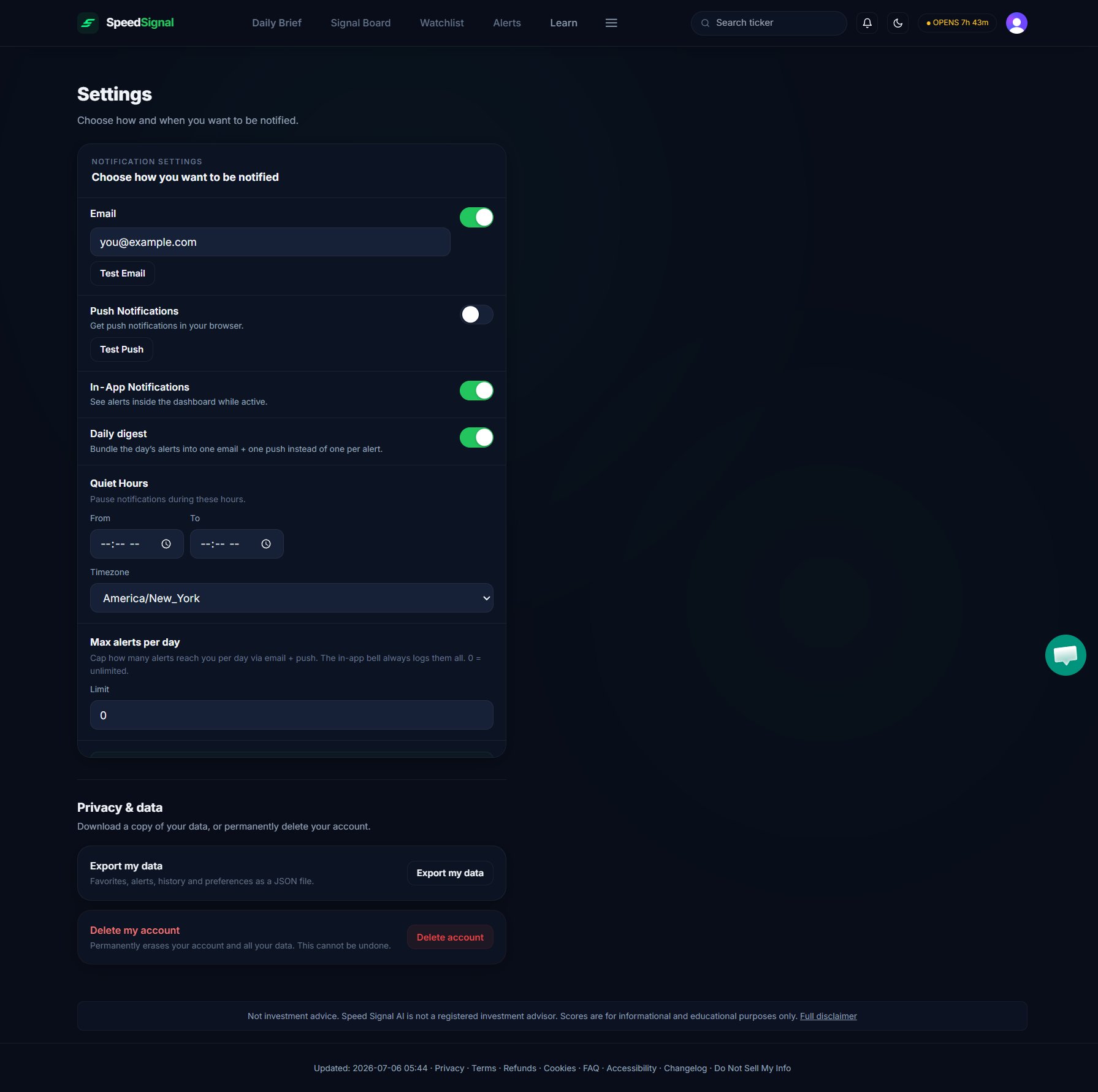
In **Settings**, the **Notification Settings** panel controls how alerts reach you:
* **Email**: delivery to the address you enter, with a **Test Email** button to confirm it works.
* **Push Notifications**: browser push, with a **Test Push** button.
* **In-App Notifications**: alerts shown inside the dashboard while you're active.
* **Daily digest**: bundles the day's alerts into one email plus one push, instead of one message per alert.
* **Quiet Hours**: a **From** / **To** window (with a timezone) during which notifications are paused.
* **Max alerts per day**: caps how many alerts reach you by email and push. The in-app bell always logs them all; `0` means unlimited.
Select **Save** to apply your changes. To create the alerts themselves, see [Alerts](/dashboard/alerts).
## Export or delete your data
Also in **Settings**, under **Privacy & data**:
* **Export my data** downloads your favorites, alerts, history, and preferences as a JSON file.
* **Delete my account** permanently erases your account and all your data. You'll be asked to type `DELETE` to confirm, and you're signed out afterward. This cannot be undone.
## Plans and billing
There are two plans:
| Plan | Price | Includes |
| -------- | --------------------------- | -------------------------------------------------- |
| **Free** | \$0 / month | Core dashboard access, no payment method required. |
| **Pro** | $99 / month, or $990 / year | Full access. Annual billing saves two months. |
Pro comes with a **7-day free trial** (full access; cancel before day 8 to avoid a charge) and a **14-day money-back guarantee** on new subscriptions.
Payments are processed securely by **Stripe**. **Speed Media Group LLC** is the merchant and seller of record, so charges may appear on your statement as Speed Signal AI, Speed Media Group, or a similar descriptor. Applicable taxes may be calculated at checkout.
To cancel or change your plan, email [support@speedsignal.com](mailto:support@speedsignal.com) or use the live chat on the dashboard. Cancellation takes effect at the end of your current billing period, and you keep access until then.
## Limits & common mistakes
* **Theme and chart provider are per-browser.** They're saved on the device you set them on, so a different browser or device may start with the defaults.
* **Push needs browser permission.** If push is blocked, enable notifications for the site in your browser settings, then use **Test Push** to confirm.
* **Quiet Hours and the daily cap only limit email and push.** The in-app bell still logs every alert.
* **Billing changes go through support.** There's no self-serve billing portal in the dashboard yet; use email or live chat to cancel, switch plans, or request a refund.
## Next steps
Create the presets and per-ticker rules that these preferences deliver.
Billing, trials, refunds, and the questions people ask most.
The full disclaimer and links to Terms, Privacy, and Refunds.
## Sign in or create an account
Speed Signal AI uses a hosted sign-in provider, so you can use an email and password or a social login.
Go to [speedsignal.com](https://speedsignal.com) and select **Sign in**.
Enter your email to create or access your account, or continue with one of the social providers offered.
Confirm your email if prompted, and the dashboard opens on the Daily Brief.
Your account is single-user and non-transferable. To update your login details or sign out, open the account menu (your avatar) in the top corner and choose **Manage account** or **Sign out**.
## Switch between dark and light themes
The theme toggle sits in the top navigation bar. Select it to move between dark and light, or press T. Your choice is saved in the browser you're using, so it sticks between visits on that device.
## Choose a chart provider
On any ticker's detail page, a **Chart Provider** control sits above the candlestick chart. It changes only how the chart renders, not the data behind it:
* **TradingView**: the default; a full-featured interactive chart.
* **ECharts**: a fast, lightweight renderer.
* **Lightweight**: a minimal, low-footprint chart.
Select any row on the Signal Board or Daily Brief to open its detail view.
Use the **Chart Provider** dropdown above the chart to switch rendering. If a provider can't load, the dashboard falls back to another automatically.
## Set your notification preferences
In **Settings**, the **Notification Settings** panel controls how alerts reach you:
* **Email**: delivery to the address you enter, with a **Test Email** button to confirm it works.
* **Push Notifications**: browser push, with a **Test Push** button.
* **In-App Notifications**: alerts shown inside the dashboard while you're active.
* **Daily digest**: bundles the day's alerts into one email plus one push, instead of one message per alert.
* **Quiet Hours**: a **From** / **To** window (with a timezone) during which notifications are paused.
* **Max alerts per day**: caps how many alerts reach you by email and push. The in-app bell always logs them all; `0` means unlimited.
Select **Save** to apply your changes. To create the alerts themselves, see [Alerts](/dashboard/alerts).
## Export or delete your data
Also in **Settings**, under **Privacy & data**:
* **Export my data** downloads your favorites, alerts, history, and preferences as a JSON file.
* **Delete my account** permanently erases your account and all your data. You'll be asked to type `DELETE` to confirm, and you're signed out afterward. This cannot be undone.
## Plans and billing
There are two plans:
| Plan | Price | Includes |
| -------- | --------------------------- | -------------------------------------------------- |
| **Free** | \$0 / month | Core dashboard access, no payment method required. |
| **Pro** | $99 / month, or $990 / year | Full access. Annual billing saves two months. |
Pro comes with a **7-day free trial** (full access; cancel before day 8 to avoid a charge) and a **14-day money-back guarantee** on new subscriptions.
Payments are processed securely by **Stripe**. **Speed Media Group LLC** is the merchant and seller of record, so charges may appear on your statement as Speed Signal AI, Speed Media Group, or a similar descriptor. Applicable taxes may be calculated at checkout.
To cancel or change your plan, email [support@speedsignal.com](mailto:support@speedsignal.com) or use the live chat on the dashboard. Cancellation takes effect at the end of your current billing period, and you keep access until then.
## Limits & common mistakes
* **Theme and chart provider are per-browser.** They're saved on the device you set them on, so a different browser or device may start with the defaults.
* **Push needs browser permission.** If push is blocked, enable notifications for the site in your browser settings, then use **Test Push** to confirm.
* **Quiet Hours and the daily cap only limit email and push.** The in-app bell still logs every alert.
* **Billing changes go through support.** There's no self-serve billing portal in the dashboard yet; use email or live chat to cancel, switch plans, or request a refund.
## Next steps
Create the presets and per-ticker rules that these preferences deliver.
Billing, trials, refunds, and the questions people ask most.
The full disclaimer and links to Terms, Privacy, and Refunds.