> ## Documentation Index
> Fetch the complete documentation index at: https://docs.speedsignal.com/llms.txt
> Use this file to discover all available pages before exploring further.
# Alerts
> Let Speed Signal AI notify you when the dashboard changes for the names or conditions you chose: ready-made presets or custom per-ticker rules, delivered by email, push, and in-app, and quiet hours.
**Alerts** let the system watch the dashboard for you and notify you when something changes on the names or conditions you picked, so you do not have to check manually. You can switch on ready-made **presets** or build **custom rules** for a specific ticker.
Alerts are informational notifications, not trade recommendations. Speed Signal AI is not a broker-dealer or investment adviser.
Alerts start **empty**. Nothing fires until you turn on a preset or create a rule.
On a narrow phone, **Alerts** moves into the menu (the hamburger button) to keep the top bar tidy. The tab works the same; only where you tap to reach it changes.
## What you see
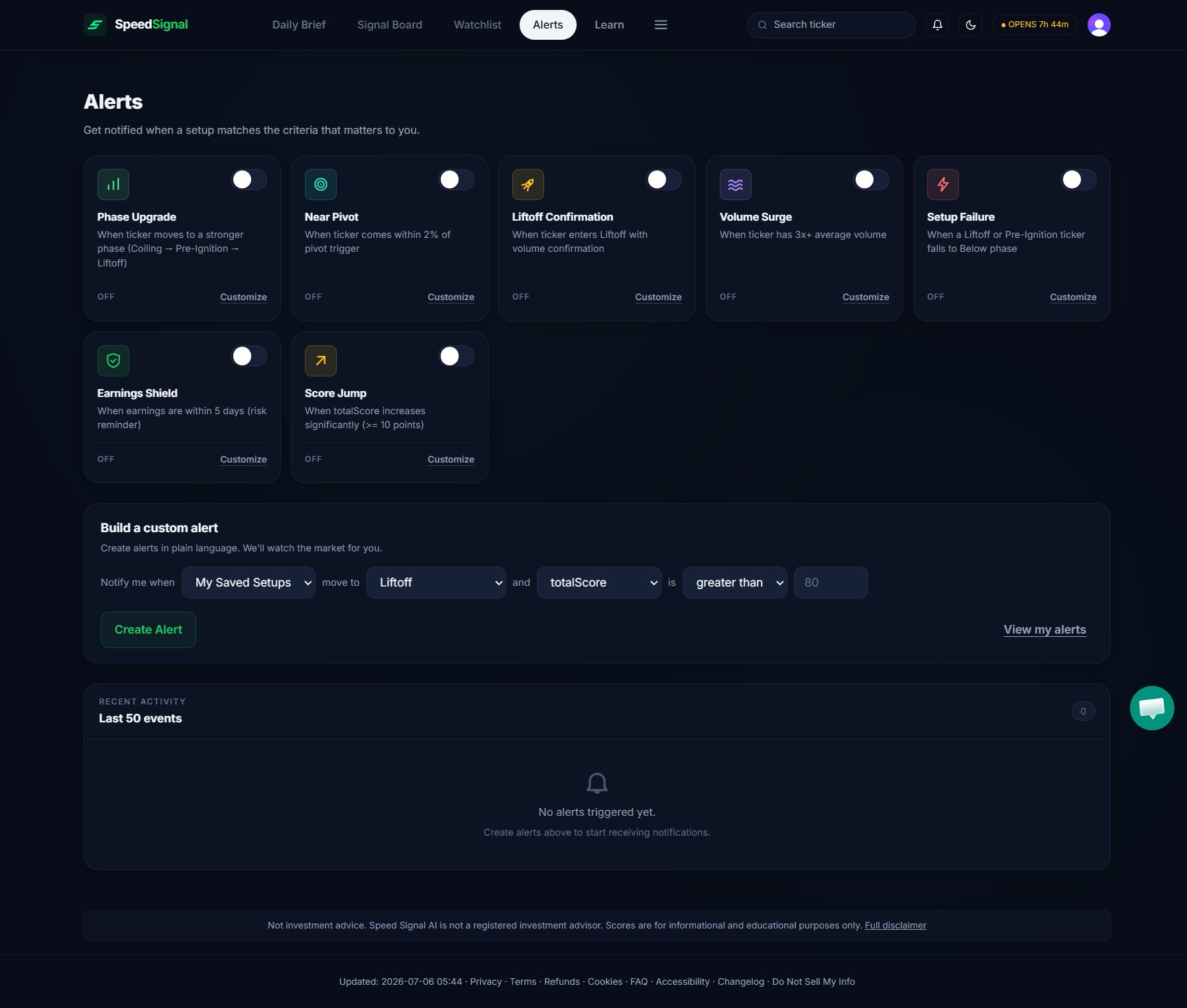
Before you set anything up, the Alerts tab shows the preset catalog with every toggle off and a custom-rule builder. Once you enable alerts, an activity list shows what has fired. (Delivery channels and quiet hours live in **Settings → Notification Settings**, not here.)
 ## Turn on a preset alert
Presets are seven ready-made rules that cover the most common things people watch for.
Click the **Alerts** tab or press 4.
Find the preset that matches what you want to be notified about (see the table below).
Flip the preset's switch on. It applies across the scan and stays on until you turn it off.
The seven presets:
| Preset | Notifies you when |
| ------------------------ | ----------------------------------------------------------------------------------------------------------------------- |
| **Phase Upgrade** | A ticker advances to a stronger phase. |
| **Near Pivot** | A ticker moves within about 5% of its pivot. |
| **Liftoff Confirmation** | A ticker confirms the Liftoff phase on expanding volume. |
| **Volume Surge** | A ticker's volume expands well above its normal range. |
| **Setup Failure** | A setup breaks down or no longer meets its criteria. |
| **Earnings Shield** | A ticker's earnings event is approaching or flagged as higher risk. |
| **Score Jump** | A ticker's Conviction rose sharply from one session to the next (the underlying Conviction number moved significantly). |
## Build a custom rule for a ticker
When a preset is not specific enough, build your own rule.
Pick what the rule watches: **My Saved Setups** (your [Watchlist](/dashboard/watchlist)), **Any Ticker**, or one **Specific Ticker**.
Set what to watch for, such as a phase change (to Liftoff, Pre-Ignition, Coiling, Below, or any change) or a threshold on a tracked measure like distance to pivot, volume impulse, or days to earnings.
Select **Create Alert**. The rule joins your active alerts and is checked each time the dashboard updates.
## Choose how you are notified
Delivery channels and timing live in **Settings → Notification Settings**, not in the Alerts tab. Open [Account & settings](/account-and-settings) to control:
* **Email** sends alerts to your address (you can send a test).
* **Push Notifications** deliver in your browser (you can send a test).
* **In-App Notifications** appear inside the dashboard while you have it open.
* **Daily digest** bundles the day's alerts into one email and one push instead of one per alert.
* **Quiet Hours** pause delivery during the window you set (From, To, and a timezone).
## Limits and common mistakes
* **Nothing fires from an empty setup.** You have to turn on at least one preset or create a rule first.
* **Alerts follow the once-a-day update.** Because scores refresh after the US close, alerts reflect the most recent completed session, not live intraday moves.
* **Push needs permission.** Your browser must allow notifications; on iPhone, add the dashboard to your Home Screen first so push can work.
* **Quiet Hours really do pause things.** If you set a wide window, expect notifications to hold until it ends.
## Next steps
Star the tickers you want your custom rules to watch.
Find names and conditions worth an alert.
Manage your account, plan, and dashboard preferences.
## Turn on a preset alert
Presets are seven ready-made rules that cover the most common things people watch for.
Click the **Alerts** tab or press 4.
Find the preset that matches what you want to be notified about (see the table below).
Flip the preset's switch on. It applies across the scan and stays on until you turn it off.
The seven presets:
| Preset | Notifies you when |
| ------------------------ | ----------------------------------------------------------------------------------------------------------------------- |
| **Phase Upgrade** | A ticker advances to a stronger phase. |
| **Near Pivot** | A ticker moves within about 5% of its pivot. |
| **Liftoff Confirmation** | A ticker confirms the Liftoff phase on expanding volume. |
| **Volume Surge** | A ticker's volume expands well above its normal range. |
| **Setup Failure** | A setup breaks down or no longer meets its criteria. |
| **Earnings Shield** | A ticker's earnings event is approaching or flagged as higher risk. |
| **Score Jump** | A ticker's Conviction rose sharply from one session to the next (the underlying Conviction number moved significantly). |
## Build a custom rule for a ticker
When a preset is not specific enough, build your own rule.
Pick what the rule watches: **My Saved Setups** (your [Watchlist](/dashboard/watchlist)), **Any Ticker**, or one **Specific Ticker**.
Set what to watch for, such as a phase change (to Liftoff, Pre-Ignition, Coiling, Below, or any change) or a threshold on a tracked measure like distance to pivot, volume impulse, or days to earnings.
Select **Create Alert**. The rule joins your active alerts and is checked each time the dashboard updates.
## Choose how you are notified
Delivery channels and timing live in **Settings → Notification Settings**, not in the Alerts tab. Open [Account & settings](/account-and-settings) to control:
* **Email** sends alerts to your address (you can send a test).
* **Push Notifications** deliver in your browser (you can send a test).
* **In-App Notifications** appear inside the dashboard while you have it open.
* **Daily digest** bundles the day's alerts into one email and one push instead of one per alert.
* **Quiet Hours** pause delivery during the window you set (From, To, and a timezone).
## Limits and common mistakes
* **Nothing fires from an empty setup.** You have to turn on at least one preset or create a rule first.
* **Alerts follow the once-a-day update.** Because scores refresh after the US close, alerts reflect the most recent completed session, not live intraday moves.
* **Push needs permission.** Your browser must allow notifications; on iPhone, add the dashboard to your Home Screen first so push can work.
* **Quiet Hours really do pause things.** If you set a wide window, expect notifications to hold until it ends.
## Next steps
Star the tickers you want your custom rules to watch.
Find names and conditions worth an alert.
Manage your account, plan, and dashboard preferences.