> ## Documentation Index
> Fetch the complete documentation index at: https://docs.speedsignal.com/llms.txt
> Use this file to discover all available pages before exploring further.
# Watchlist
> Track the tickers you already care about and watch how Speed Signal AI classifies them over time: phase, Conviction, and how close each one sits to its pivot, all in one place.
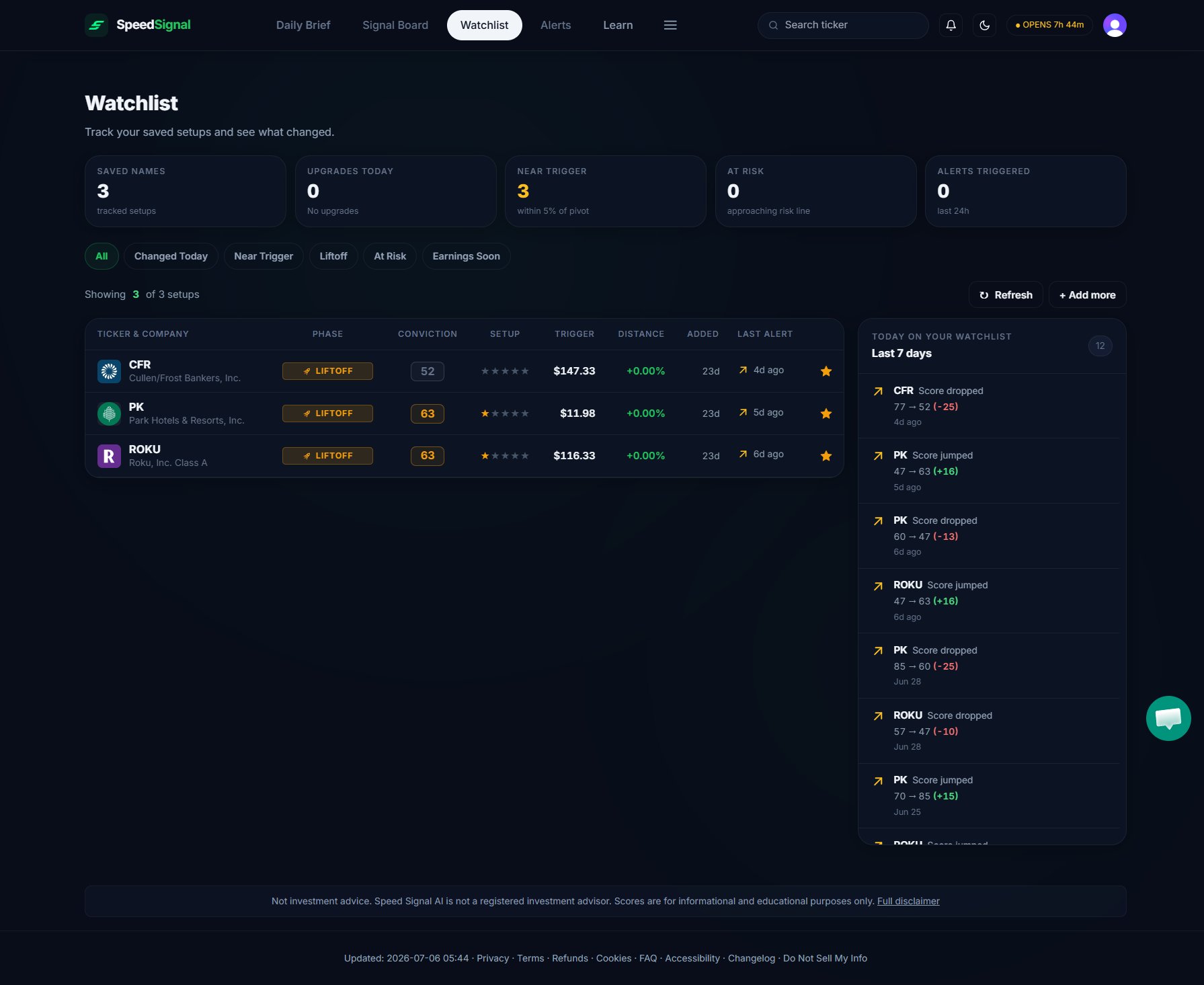
Your **Watchlist** is where you keep the names you already follow and see how the system reclassifies them each day. Instead of hunting for a ticker in the full scan, you pin it once and the dashboard tracks its phase, Conviction, and context for you.
The Watchlist starts **empty**. You fill it by starring tickers anywhere they appear.
## What you see
Before you add anything, the Watchlist shows an empty state with a short prompt to add your first ticker. Once you star a few names, it fills with a table of your tracked tickers plus a recent-activity feed.
 ## Add a ticker to your Watchlist
You can star a ticker from almost anywhere it is listed: the Signal Board, the Daily Brief, or its own detail page.
Locate the name in a table (Signal Board or Daily Brief) or open its [detail page](/dashboard/ticker-detail).
Click the star icon on its row. On a ticker's detail page, use the **Save to Watchlist** button instead.
The star turns amber once the name is tracked. Open the **Watchlist** tab (or press 3) to see it listed.
## Remove a ticker
Click the amber star again, on the ticker's Watchlist row or anywhere it appears, to untrack it. It disappears from your Watchlist right away.
## How to read your Watchlist
Once you have names on it, the Watchlist shows each ticker with its current **Phase**, its **Conviction** level, a **Setup** strength rating (zero to five stars), and how close it sits to its pivot, so you can scan your list the same way you read the [Signal Board](/dashboard/signal-board).
A **Today on Your Watchlist** panel lists recent activity from the last 7 days: phase changes and other movements on the names you track. It answers the question "what changed on my list since I last looked?" without making you re-check each ticker.
## Limits and common mistakes
* **It is tied to your account.** Sign in to see your Watchlist; it syncs across your devices. Signed out, you only see the empty state.
* **It updates once per day.** Like the rest of the dashboard, the phases and Conviction on your Watchlist reflect the most recent completed session after the US close, not live intraday prices. (The one live element anywhere in the product is the candlestick chart on a ticker's [detail page](/dashboard/ticker-detail).)
* **Conviction is relative.** A tracked ticker's Conviction can change from one day to the next because the rest of the market scored differently that session, not because the company did. See [Phases and Conviction](/scores/phases-and-conviction).
* **The Watchlist organizes, it does not advise.** Adding a ticker tracks it for you; it is not a buy list or a recommendation to act.
## Next steps
Explore and filter the full scan to find names worth starring.
Get notified when the tickers or conditions you track change.
Understand what the phase badge and Conviction level mean.
## Add a ticker to your Watchlist
You can star a ticker from almost anywhere it is listed: the Signal Board, the Daily Brief, or its own detail page.
Locate the name in a table (Signal Board or Daily Brief) or open its [detail page](/dashboard/ticker-detail).
Click the star icon on its row. On a ticker's detail page, use the **Save to Watchlist** button instead.
The star turns amber once the name is tracked. Open the **Watchlist** tab (or press 3) to see it listed.
## Remove a ticker
Click the amber star again, on the ticker's Watchlist row or anywhere it appears, to untrack it. It disappears from your Watchlist right away.
## How to read your Watchlist
Once you have names on it, the Watchlist shows each ticker with its current **Phase**, its **Conviction** level, a **Setup** strength rating (zero to five stars), and how close it sits to its pivot, so you can scan your list the same way you read the [Signal Board](/dashboard/signal-board).
A **Today on Your Watchlist** panel lists recent activity from the last 7 days: phase changes and other movements on the names you track. It answers the question "what changed on my list since I last looked?" without making you re-check each ticker.
## Limits and common mistakes
* **It is tied to your account.** Sign in to see your Watchlist; it syncs across your devices. Signed out, you only see the empty state.
* **It updates once per day.** Like the rest of the dashboard, the phases and Conviction on your Watchlist reflect the most recent completed session after the US close, not live intraday prices. (The one live element anywhere in the product is the candlestick chart on a ticker's [detail page](/dashboard/ticker-detail).)
* **Conviction is relative.** A tracked ticker's Conviction can change from one day to the next because the rest of the market scored differently that session, not because the company did. See [Phases and Conviction](/scores/phases-and-conviction).
* **The Watchlist organizes, it does not advise.** Adding a ticker tracks it for you; it is not a buy list or a recommendation to act.
## Next steps
Explore and filter the full scan to find names worth starring.
Get notified when the tickers or conditions you track change.
Understand what the phase badge and Conviction level mean.