> ## Documentation Index
> Fetch the complete documentation index at: https://docs.speedsignal.com/llms.txt
> Use this file to discover all available pages before exploring further.
# Quickstart
> Sign in and go from the Daily Brief to your first saved setup in about five minutes, using Phase badges and Conviction levels, no jargon.
This is the fastest path from signing in to reviewing your first **setup**. In about five minutes you'll open the Daily Brief, read a ticker's Phase and Conviction, narrow the Signal Board to a shortlist worth researching, and save a name to your Watchlist.
Speed Signal AI is screening and analytics software, not a broker-dealer or investment adviser. Scores, phases, and screening results are data outputs and research candidates, not investment advice, recommendations, trading signals, or a buy list. Always do your own research.
Scores update **once per day, after the US market closes**. Everything you see reflects the most recent completed trading session, not live intraday prices. The only live element is the candlestick chart on a ticker's detail page.
Because the scan runs after the close, you're always reviewing the most recent completed session, not a live feed. Nothing here moves tick by tick, so there's nothing to watch in real time.
## What you see
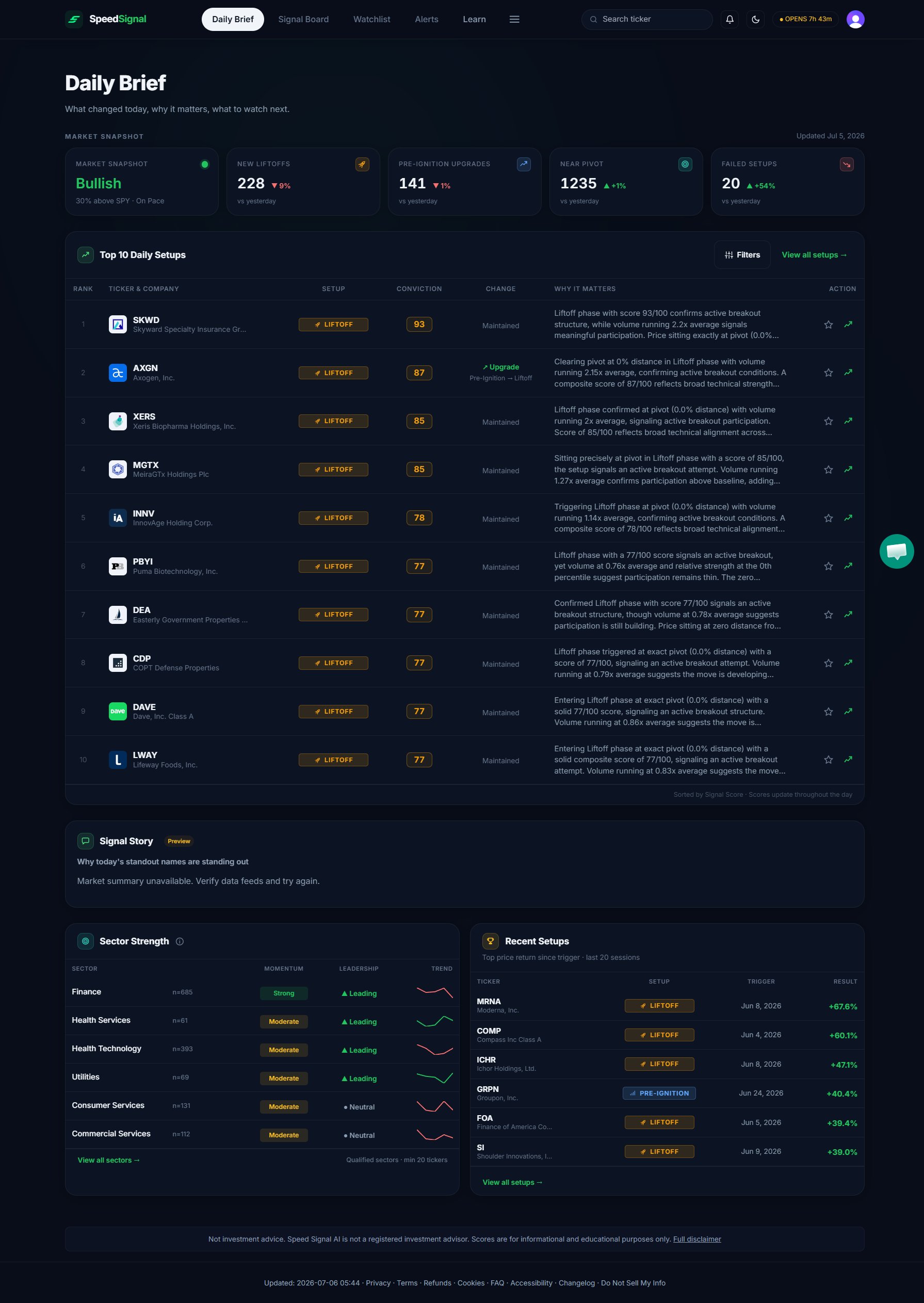
The dashboard opens on the **Daily Brief**, a summary of what changed in the latest scan. From the top navigation you can move to the Signal Board, Watchlist, and Alerts.
 ## Get your first win
Go to [speedsignal.com](https://speedsignal.com) and open the dashboard. Sign in with your email address or a social account. On your first visit you'll create an account on the Free plan, so you can start without a card.
The **Daily Brief** is the home view and opens by default. It answers "what changed today?" at a glance: a **Market Snapshot** (an overall regime card plus four KPI cards, **New Liftoffs**, **Pre-Ignition Upgrades**, **Near Pivot**, and **Failed Setups**), the **Top 10 Daily Setups** table, and a **Sector Strength** panel. Click a KPI card to open the Signal Board filtered to those names.
Every ticker carries a **Phase** badge (**Coiling**, **Pre-Ignition**, **Liftoff**, or **Below**) that describes the current state of its setup. Next to it, the **Conviction** column shows a level: **Low**, **Medium**, or **High**. These are the two things to read first: Phase tells you *what stage* the setup is in, Conviction tells you *how it ranks today*.
Conviction is **relative and resets every session**. "High" means a ticker ranked among the highest relative scores in that day's scan of 3,000+ tickers, not that it is an objectively good or recommended stock. A ticker's Conviction can change from one day to the next because the pool changed, not because the company did.
Open the **Signal Board** (the full, filterable screener). Use the quick-filter **chips** to narrow the list to what you want to review. For example, tap **New Liftoffs** to see names that just reached the Liftoff phase, or **Highest Conviction** to see the day's highest-Conviction names. You can also search for a ticker, or open **Advanced Filters** for finer control (Conviction, status, tier, and risk-flag pills, plus the eligibility thresholds). What's left is a shortlist to research on your own.
Click any row to open its **preview panel** (a side panel on desktop, a bottom sheet on mobile) with the ticker's key context at a glance. From there, **View Full Analysis** opens the full **Ticker Detail** page: a candlestick chart plus **Overview**, **Technicals**, and **Fundamentals** sub-tabs, the Phase badge, the Conviction number (shown as **Conviction NN/100**), any risk flags, and the technical reference levels the setup is built around.
Tap the **star** icon next to a ticker to save it to your **Watchlist**. Your Watchlist starts empty; saved names let you track phase changes and Conviction over time without hunting for them each day.
Open **Alerts** and turn on a preset (for example, **Phase Upgrade** or **Liftoff Confirmation**) or build a custom per-ticker rule. Your delivery channels (email, push, or in-app) are chosen once in **Settings**, not per alert, and Speed Signal AI notifies you when that condition shows up, so you don't have to check manually. (Quiet hours are respected.)
## How to read what you see
Lead with the two things on screen for every ticker:
* **Phase** is a description of a state, not an instruction. "Liftoff" means the setup conditions are most aligned in the data right now, not that you should act.
* **Conviction** is a separate axis from Phase. A **Coiling** ticker can be **High** Conviction, and a **Liftoff** ticker can be **Low** Conviction. On a ticker's detail page the same value appears as **Conviction NN/100**.
Read them together as context to review, never as a measure of how good a trade is. You'll usually meet the underlying 0–100 value as **Conviction** rather than as a standalone "score" label; on a ticker's detail page it appears as **Conviction NN/100**.
## Limits & common mistakes
* **It's end-of-day.** Everything except the ticker's candlestick chart reflects the last completed session, not live prices.
* **Conviction is relative and resets daily.** "High" today doesn't carry over to tomorrow; the pool is re-ranked every session.
* **A Phase badge is a label, not a call to action.** It describes what the data is doing, not what you should do with money.
* **Empty Watchlist and Alerts are normal at first**: they fill up as you save names and turn on presets.
* **A chip name is a filter, not a recommendation.** "Highest Conviction" narrows the list; it doesn't endorse those tickers.
## Next steps
A map of every view and how to read a ticker at a glance.
What each phase means and why Conviction is relative.
Filters, chips, and the Advanced Filters drawer in depth.
## Get your first win
Go to [speedsignal.com](https://speedsignal.com) and open the dashboard. Sign in with your email address or a social account. On your first visit you'll create an account on the Free plan, so you can start without a card.
The **Daily Brief** is the home view and opens by default. It answers "what changed today?" at a glance: a **Market Snapshot** (an overall regime card plus four KPI cards, **New Liftoffs**, **Pre-Ignition Upgrades**, **Near Pivot**, and **Failed Setups**), the **Top 10 Daily Setups** table, and a **Sector Strength** panel. Click a KPI card to open the Signal Board filtered to those names.
Every ticker carries a **Phase** badge (**Coiling**, **Pre-Ignition**, **Liftoff**, or **Below**) that describes the current state of its setup. Next to it, the **Conviction** column shows a level: **Low**, **Medium**, or **High**. These are the two things to read first: Phase tells you *what stage* the setup is in, Conviction tells you *how it ranks today*.
Conviction is **relative and resets every session**. "High" means a ticker ranked among the highest relative scores in that day's scan of 3,000+ tickers, not that it is an objectively good or recommended stock. A ticker's Conviction can change from one day to the next because the pool changed, not because the company did.
Open the **Signal Board** (the full, filterable screener). Use the quick-filter **chips** to narrow the list to what you want to review. For example, tap **New Liftoffs** to see names that just reached the Liftoff phase, or **Highest Conviction** to see the day's highest-Conviction names. You can also search for a ticker, or open **Advanced Filters** for finer control (Conviction, status, tier, and risk-flag pills, plus the eligibility thresholds). What's left is a shortlist to research on your own.
Click any row to open its **preview panel** (a side panel on desktop, a bottom sheet on mobile) with the ticker's key context at a glance. From there, **View Full Analysis** opens the full **Ticker Detail** page: a candlestick chart plus **Overview**, **Technicals**, and **Fundamentals** sub-tabs, the Phase badge, the Conviction number (shown as **Conviction NN/100**), any risk flags, and the technical reference levels the setup is built around.
Tap the **star** icon next to a ticker to save it to your **Watchlist**. Your Watchlist starts empty; saved names let you track phase changes and Conviction over time without hunting for them each day.
Open **Alerts** and turn on a preset (for example, **Phase Upgrade** or **Liftoff Confirmation**) or build a custom per-ticker rule. Your delivery channels (email, push, or in-app) are chosen once in **Settings**, not per alert, and Speed Signal AI notifies you when that condition shows up, so you don't have to check manually. (Quiet hours are respected.)
## How to read what you see
Lead with the two things on screen for every ticker:
* **Phase** is a description of a state, not an instruction. "Liftoff" means the setup conditions are most aligned in the data right now, not that you should act.
* **Conviction** is a separate axis from Phase. A **Coiling** ticker can be **High** Conviction, and a **Liftoff** ticker can be **Low** Conviction. On a ticker's detail page the same value appears as **Conviction NN/100**.
Read them together as context to review, never as a measure of how good a trade is. You'll usually meet the underlying 0–100 value as **Conviction** rather than as a standalone "score" label; on a ticker's detail page it appears as **Conviction NN/100**.
## Limits & common mistakes
* **It's end-of-day.** Everything except the ticker's candlestick chart reflects the last completed session, not live prices.
* **Conviction is relative and resets daily.** "High" today doesn't carry over to tomorrow; the pool is re-ranked every session.
* **A Phase badge is a label, not a call to action.** It describes what the data is doing, not what you should do with money.
* **Empty Watchlist and Alerts are normal at first**: they fill up as you save names and turn on presets.
* **A chip name is a filter, not a recommendation.** "Highest Conviction" narrows the list; it doesn't endorse those tickers.
## Next steps
A map of every view and how to read a ticker at a glance.
What each phase means and why Conviction is relative.
Filters, chips, and the Advanced Filters drawer in depth.