

Alerts are informational notifications, not trade recommendations. Speed Signal AI is not a broker-dealer or investment adviser.
Read your configured alerts
Your configured alerts lists each rule with its scope, condition, frequency, and On/Off status. A one-ticker rule shows its logo and symbol first. Use Edit to load a custom rule into the builder, then Save changes. Editing preserves its On/Off state and does not create another rule. Use the switch to pause a rule or the delete button to remove it.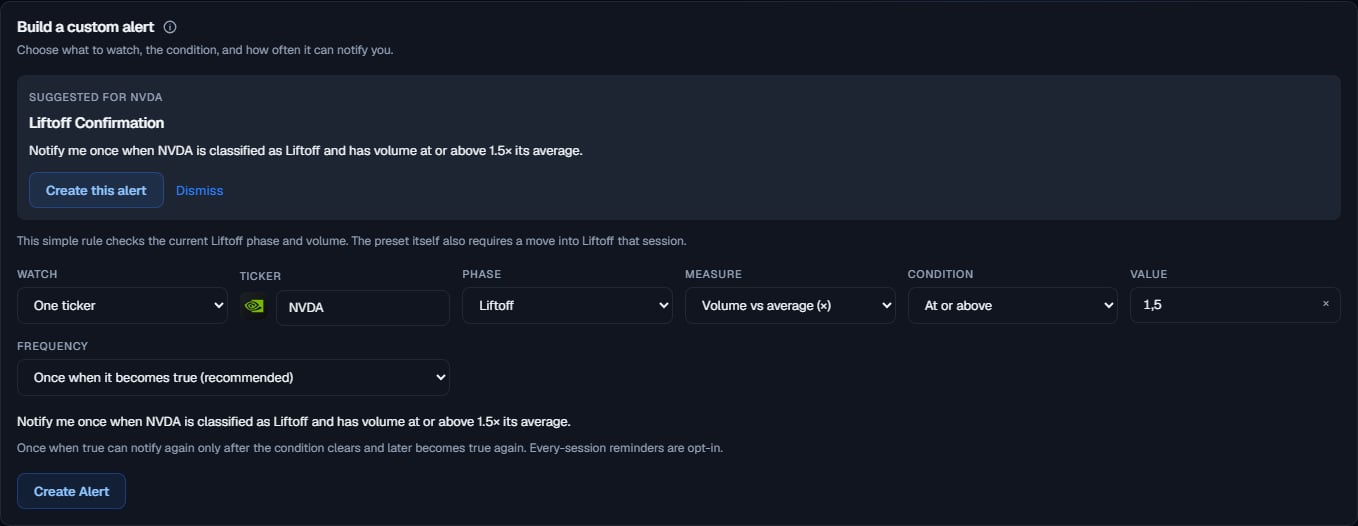
Turn on a preset
Presets watch your Watchlist, not the entire market. All 12 presets are available on Free, within its three-active-rule limit. Open Alerts, find a preset, and turn on its switch. An empty Watchlist has no names for presets to check.Momentum
Risk
Apply a ticker suggestion
Select Set Alert or the alert icon beside a ticker in the dashboard. Alerts opens with One ticker selected and its symbol visible. The suggestion names the preset and fills in a simple rule. Read the sentence and the note explaining any differences from the preset. For example, a Liftoff custom rule checks the current phase and volume; it does not require that the phase changed to Liftoff that session. Select Create this alert to save the rule shown. Dismiss removes the suggestion without clearing the builder. Leaving Alerts also dismisses the suggestion.Build a custom rule
1
Choose what to watch
Watchlist checks your saved tickers. One ticker checks a symbol selected from the ticker or company search. Entire market checks the scan and requires Pro.
2
Optionally filter Market cap
For Watchlist or Entire market, choose All, Small, Mid, Large, or Custom. Small is under 2B to under 10B or more. Custom is a minimum between 5000B. Missing market-cap data only passes All. This filter is not applied to One ticker.
3
Choose the phase and measure
Any phase is the default. You can choose Coiling, Pre-Ignition, Liftoff, or Below. Select a measure, comparison, and value; the unit appears beside the value.
4
Read the preview and choose the frequency
The sentence updates as you edit. Once when it becomes true (recommended) notifies when the complete rule becomes true. It can notify again after the rule becomes false and later true again. Every session while true can repeat for each completed session that matches.
5
Save
Select Create Alert, or Save changes when editing. A failed save keeps your draft for retry.
Starting values are editable examples, not recommendations. A negative session-change threshold can describe a decline: At or below −5%.
Customize uses the same simple-rule templates as ticker suggestions. The note explains what differs. Phase transitions, two-direction moves, or repeated score jumps may behave differently from their presets. Risk Flag Added is Preset only because risk flags are not a measure in the simple builder.
Delivery and limits
- Free allows three active rules. The builder shows “2 of 3 alert rules in use.” At the limit, creating another opens the upgrade prompt. Pro supports more rules and Entire market scope.
- Completed sessions, not live prices. A rule does not guarantee a match.
- Channels follow your plan and Settings. Both plans use in-app activity and at most one grouped email per completed session and local day. It contains up to 10 alerts, highest score first; remaining matches stay in Recent activity and are not emailed separately. Web Push requires Pro and browser permission, with a separate limit of 10 events per day.
- There is no quiet-hours schedule. Enabled email and push channels deliver when alerts are ready, within the delivery limits. In-app history remains available.
- Existing rules are preserved. An older rule with a measure unavailable in the current builder can still run or be paused. Create a new rule to use the current measures.
Next steps
Watchlist
Manage the tickers your presets watch.
Signal Board
Review the scan and open a ticker.
Account and settings
Manage channels, timing, and your plan.